Popups and age verification
Heirloom has two popups: an age gate that asks customers to confirm their age before they browse, and a newsletter popup that invites them to sign up for your emails. Both open over the page, on every page of your online store.
Heirloom comes with both popups in place and switched off. The age gate is in the header section group and the newsletter popup is in the footer section group. Turn on the ones that you want.
Age gate
The age gate asks “Are you 21 or older?”, using the minimum age that you set, in the customer’s language. You can write your own question in Heading. Customers answer with a yes or a no button. Use it if you sell products that have a legal minimum age where you sell, such as alcohol.
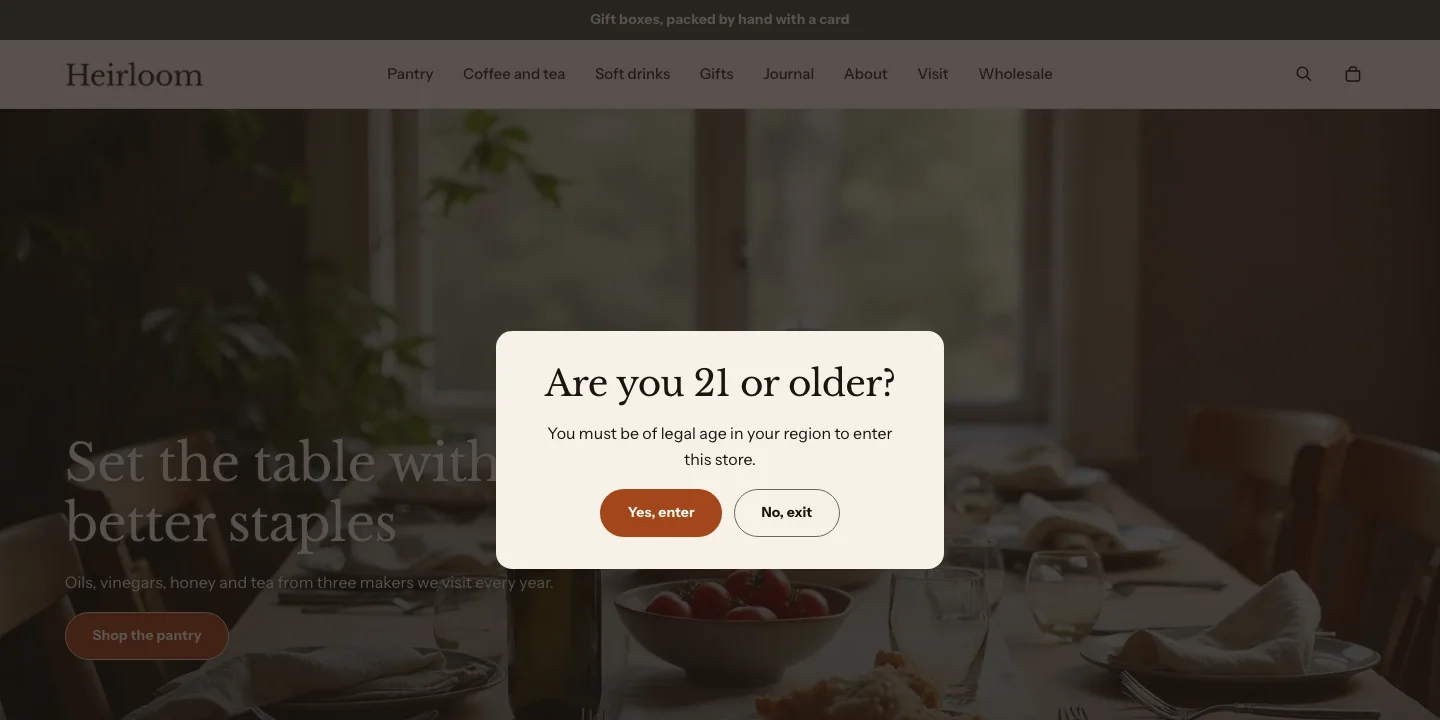
Turn on the age gate
Steps:
- From your Shopify admin, go to Online Store > Themes.
- Find Heirloom, and then click Edit theme.
- In the sidebar, under Header, click Age gate.
- Check Enable age gate.
- Set the Minimum age.
- Click Save.
In the theme editor, the age gate opens straight away so you can see it. To work on the page behind it, click the yes button. The age gate opens again the next time the preview reloads.
Who sees it, and how often
- The age gate opens on the first page a customer visits. They can’t close it or scroll the page behind it until they answer.
- When a customer clicks yes, the age gate closes and stays closed until they close the browser tab. A customer who opens your store in a new tab is asked again.
- To ask less often, set Remember the answer for to a number of days. Customers who allow preference cookies aren’t asked again on that device for that many days. Customers who don’t allow them are asked on each visit.
- When a customer clicks no, the age gate stays open and shows the deny message.
- The theme editor never remembers your answer, so the age gate shows each time you open the editor.
The question is always the first line. You can add these blocks under it:
- Heading
- Text
- Image
Settings
- Enable age gate: Shows the age gate. Heirloom's own age gate starts with this off. An age gate that you add again from Add section starts with it on.
- Minimum age: The age that customers confirm. It shows in the question, for example "Are you 18 or older?".
- Heading: Your own question, in place of "Are you 21 or older?". It shows as written in every language, so include the age yourself.
- Remember the answer for: How long the age gate stays closed after a customer clicks yes. 0 d asks again on each visit.
- Color scheme: The colors of the age gate's panel. The page behind it is dimmed.
Button settings
The yes and no buttons are the Age gate buttons block. It’s always there, after any blocks that you add.
- Confirm button: Leave blank to use the default wording in each language.
- Deny button: Leave blank to use the default wording in each language.
- Deny message: Leave blank to use the default wording in each language.
The age gate works with a keyboard and screen readers. When it opens, focus moves into it and stays there until the customer answers, and the page behind it can’t be reached. Customers who set their device to reduce motion see it appear without animation.
Newsletter popup
The newsletter popup invites customers to sign up for your emails. It opens a few seconds after a customer arrives, with a heading, text, an optional image and an email signup form. Customers who sign up are added to your customer list in your Shopify admin, with their email marketing consent.
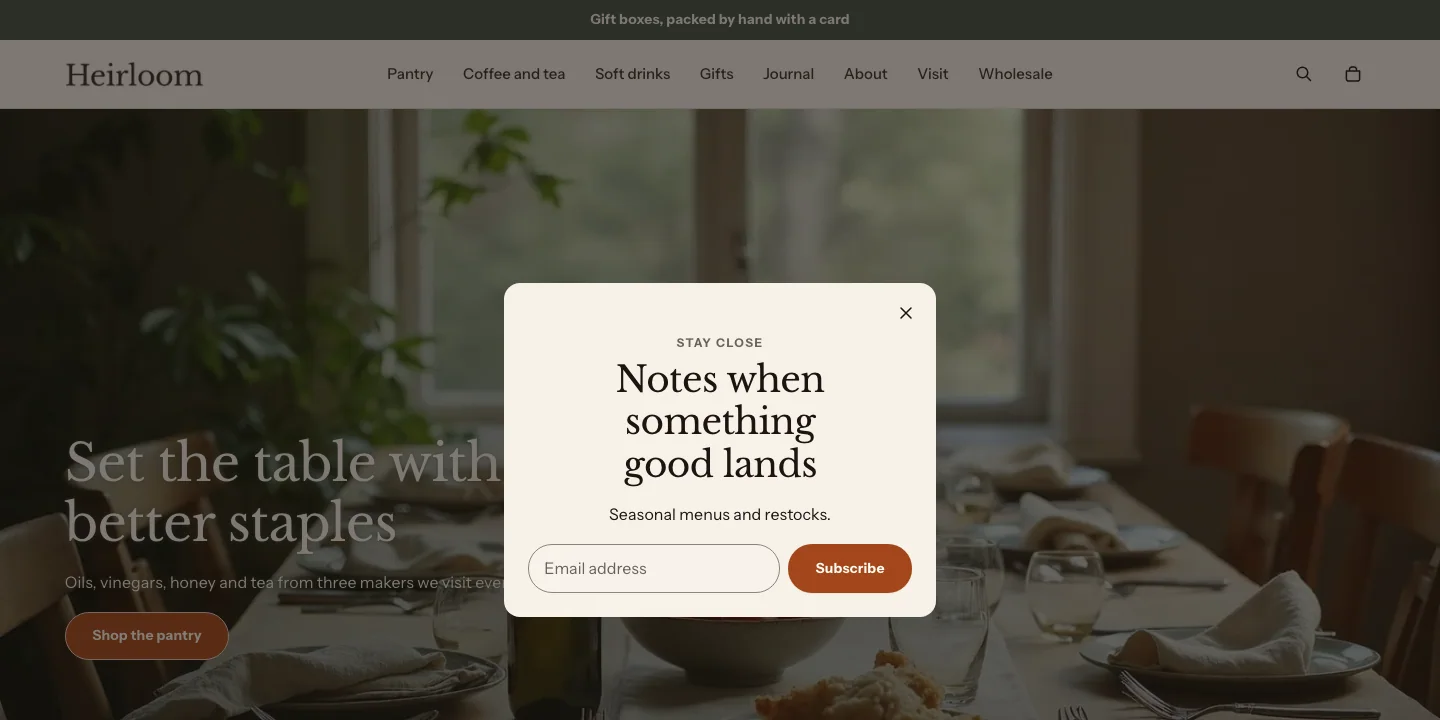
Turn on the newsletter popup
Steps:
- From your Shopify admin, go to Online Store > Themes.
- Find Heirloom, and then click Edit theme.
- In the sidebar, under Footer, click Newsletter popup.
- Check Enable popup.
- Set the Delay before show.
- Click Save.
Who sees it, and how often
- The popup opens once per visit, after the delay. If a customer moves to another page before the delay ends, the timer starts again on that page.
- When a customer closes the popup with the close button, by clicking outside it or by pressing Escape, it stays closed on later visits too. With Show again after (days) set to a number of days, it opens again once that many days have passed. A customer who signs up never sees it again. Heirloom remembers this only when the customer’s privacy choices allow your store to save preferences.
- With Show on phones turned off, the popup doesn’t open on screens under 750 pixels wide.
- When the age gate is on and a customer hasn’t answered it yet, the popup waits until they do.
- After a customer submits the form, the page reloads and the popup opens again to show the confirmation or the error message.
- Customers who set their device to reduce motion see the popup after at most 3 seconds, and without animation.
- The popup opens in the theme editor straight away, so you can see it while you edit it.
The email signup form is always included. You can add these blocks above it:
- Heading
- Text
- Image
With no blocks, the popup shows a default heading above the form.
Settings
- Enable popup: Opens once per visit after the delay, and never again once closed.
- Delay before show: How many seconds after a page loads the popup opens. Heirloom's own popup starts at 10 seconds in every theme style.
- Show again after (days): How many days the popup stays closed after a customer closes it. 0 keeps it closed for good.
- Show on phones: Turn it off to open the popup on larger screens only.
- Color scheme: The colors of the popup's panel. The page behind it is dimmed.
To change the form’s button label, layout or privacy note, click the Email signup block inside the popup. Learn about its settings in Theme blocks.
When the popup opens, focus moves into it and stays there until the customer closes it, and the page behind it can’t be reached. Closing it returns focus to where the customer was.
Related
- Learn more about customer privacy settings in Shopify’s Help Center.
- Learn more about email marketing with Shopify Messaging in Shopify’s Help Center.
- Learn more about the header and announcement bar.